On The Mend · Tactical
How to Delete Your Ex From Your Phone (For Real This Time)

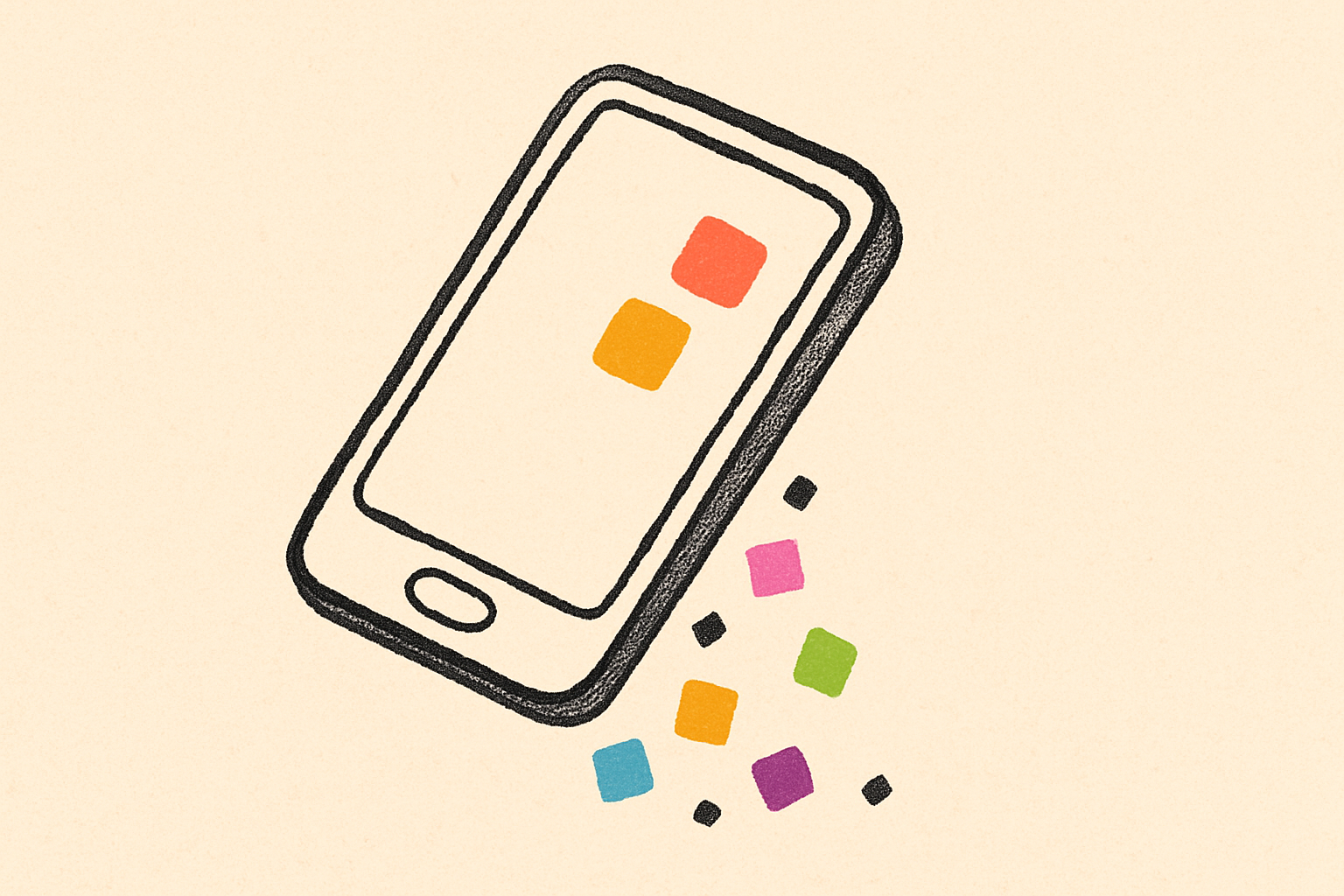
To actually delete your ex from your phone, you have to do more than tap "Delete Contact." Their info is sprawled across Contacts, Messages, Photos, Mail, autofill, iCloud sharing, the Apple ecosystem, every social DM, every payment app, every shared playlist, and every saved Wi-Fi network. This is the full 8-step purge — including the places people forget — so you stop accidentally surfacing them every time you type the first letter of their name.
Why deleting once isn't enough
You delete the contact. A week later you go to text your friend with the same first letter as their name, and there it is: the autofill from a Mail thread, the suggested recipient in Messages, the Siri suggestion, the photo memory on a Tuesday morning.
The data lives in more places than you think. Your phone is doing a lot of helpful syncing that, for a person you're trying to forget, is the opposite of helpful. So you do the purge in one sitting, in order, and you don't open any of these apps casually for a couple weeks afterward.
Block 30 to 45 minutes. Coffee. Headphones. Sit down. Don't do this at 1am — late-night decision-making is measurably worse for you, and you'll either skip steps or relapse-scroll the photos you're supposed to be deleting.
Step 1: Delete the contact card
The obvious one, but do it right.
- Open the Contacts app (or Phone → Contacts tab).
- Find their card.
- Tap the card to open it.
- Scroll to the bottom.
- Tap Delete Contact. Confirm.
If you have multiple cards (one from sync, one you made manually, one from a shared work app), delete all of them.
Then go to Settings → Phone → Blocked Contacts → Add New. Add their number. This blocks calls, FaceTime, and SMS/iMessage from that number even though the contact card is gone. Add any secondary numbers too (work number, parent's house, etc.).

Step 2: Delete or archive the message threads
The iMessage thread is the relapse vector.
In iMessages:
- Swipe left on their thread → Delete. (If you want to preserve it for legal reasons, use Hide Alerts and bury it in a filtered folder instead.)
- In Settings → Messages → Keep Messages, leave the default. You don't need to nuke message history, just this thread.
- Long-press the thread → Hide Alerts. Belt and suspenders.
Across other apps:
- WhatsApp. Open chat → contact name at top → Clear Chat → confirm. Then block.
- Signal. Long-press chat → Delete. Then block.
- Snapchat. Hold the chat → Delete. Then block from their profile.
- Instagram DMs. Long-press the conversation → Delete. Then block from their profile.
- Facebook Messenger. Long-press → Delete. Then block.
- Telegram. Right-click chat → Delete Chat → check "Also delete for [name]" if you want, then block.
For everything: block in addition to deleting. Deleting only removes your end. Blocking stops new messages.
Step 3: Clear them from Photos
This is the one most people skip and most regret skipping.
- Open Photos.
- Tap Albums → scroll to People & Pets.
- Find their face. Tap it.
- Top right menu → Less Frequent (this stops them showing up in featured photos and memories) or just bulk select all photos.
- Bulk delete or move to a Hidden album.
Then:
- Settings → Photos → Memories → Show Featured Content → off. Or use Suggest Less on memories that include them.
- Settings → Photos → Memories → Show Holidays → off if anniversary dates with them keep surfacing.
- Photos → Recently Deleted → empty it. Otherwise the photos live there for 30 days and you can absolutely retrieve them at 2am.
If the photos have sentimental or legal value (kid memories, lease evidence), back them up to an external drive or a cloud folder you don't open day-to-day, then delete from your phone library.
Step 4: Remove from Mail VIPs and routing
Email is sneaky. Even without a contact card, the autofill remembers.
- Mail → Mailboxes → VIP. If they're in there, remove.
- Settings → Mail → Blocked Sender Options → Move to Trash. Add them as a Blocked Sender.
- In iCloud Mail web (or Gmail), create a rule: from "[their email]," route to a folder called "Don't Open" and mark as read. This way you don't get notified, but the email exists if you ever need it.
- Long-press their name in Mail → Remove from Recents. Do this for every recent entry tied to them.
- Search Mail for their email address. Bulk-delete old threads you don't need, or archive into the same hidden folder.

Step 5: Clear Safari and Keychain autofill
The most embarrassing autofill scenario: you start typing "I" in a search bar and your ex's name autocompletes from the time you Googled them at 3am.
- Settings → Safari → AutoFill. Turn off contact info if their card is somehow still linked, and edit your own info.
- Settings → Safari → Clear History and Website Data. This nukes search history. (You may want to export bookmarks first.)
- Settings → Passwords. Delete saved logins tied to them: shared Netflix, shared Spotify Premium family, shared food delivery. Change the passwords on accounts you're keeping.
- Safari → bookmarks → delete the bookmarks tied to them (the cafe you both loved, the playlist link, etc.).
- Settings → General → Keyboard → Text Replacement. Delete any shortcuts you set up that mention them ("ily" → their name, etc.).
Step 6: Disconnect from iCloud and Apple ecosystem
Apple's sharing features are the worst offender. There are six different places they might still be syncing with you.
- Find My. [Settings → [your name] → Find My → Share My Location](https://support.apple.com/guide/iphone/share-your-location-iph2eb5b743b/ios) → if they're listed, tap → Stop Sharing My Location. Also check the Find My app → People tab → remove them.
- Shared Albums. Photos → Albums → Shared Albums. Delete or leave any albums shared with them.
- Shared Notes. Notes → search for their name → for each shared note, tap the share icon → Manage Shared Note → remove them.
- Shared Reminders. Reminders → any list with their face icon → Manage Shared List → remove them.
- Calendar. Calendar → any shared calendar with them → Stop Sharing.
- Family Sharing. Settings → [your name] → Family Sharing → if you're in a family with them, leave or remove them.
Don't forget AirPods, AirTags, and HomeKit:
- AirTag they gave you, or one of theirs on your keychain: remove from your Find My.
- HomeKit / Home app: remove them as a guest from your home.
- AirPods that paired through their iCloud: Settings → Bluetooth → forget the device if it's theirs.
Step 7: Block on social and clear DMs
Don't unfollow. Block. Unfollow leaves the door open. Block closes it.
- Instagram. Profile → menu → Block. Then go to your DMs and delete the conversation thread.
- TikTok. Their profile → share icon → Block.
- X / Twitter. Profile → menu → Block. Delete DM history.
- Snapchat. Profile → menu → Block + Remove Friend.
- Facebook. Profile → menu → Block. This unfriends and blocks in one.
- LinkedIn. Profile → More → Report/Block. Yes, even LinkedIn. They will find you on LinkedIn.
- BeReal, Threads, Bluesky, any other app. Same pattern: block, delete DMs.
For dating apps: delete the app and reinstall later if you want, so old matches and their profile (if you matched) are gone.
Step 8: Clean the long tail
These are the ones nobody mentions, and any one of them can spiral you.
- Venmo / Cash App / Zelle. Make all your transactions with them private (Venmo: Me tab → settings → Privacy → past transactions → change all to Private). Unfriend them on Venmo so their feed stops showing.
- Spotify. Settings → Privacy → unfollow them. Remove any shared playlists from your library, or remove yourself as a collaborator. Disconnect their Spotify Friends listing.
- Apple Music. Same drill: unfollow, remove shared playlists.
- Discord, Slack outside work, Reddit DMs. Block on each.
- Gaming. Xbox Live, PSN, Steam, Switch friends list. Remove and block.
- Food delivery / Uber Eats / DoorDash. Remove their address from your saved addresses, especially if you saved their place as "Home" or "Babe."
- Wi-Fi. Settings → Wi-Fi → tap their home network → Forget This Network.
- Bluetooth. Forget any of their devices that paired with yours.
- Saved Wi-Fi shared via iCloud Keychain. Same as above, but check Settings → Passwords for Wi-Fi entries linked to their accounts.
A vivid 2am scenario
It's 1:30am. You're not even going to text them. You're just going to look. You open Photos to find a picture for something unrelated. The Memories card pops up: "On This Day, Three Years Ago." It's the beach trip. You're spiraling by 1:32am.
That whole sequence is prevented by Step 3 and Step 6. The photos hidden, the Memories disabled, the Featured Content off. You open Photos for the photo you actually needed and you get only that.
This is the entire reason for doing the purge in one sitting. Each missed step is a 2am ambush waiting to happen.
After the purge
Empty Recently Deleted in every app. Restart your phone (clears autofill caches). Don't open Photos, Mail, or social for the rest of the night. Go to bed.
The next two weeks: don't search for them in any app, even out of curiosity. The search history is itself a relapse path; you searched for them once, your phone now suggests them as a search.
If you find yourself reaching for the apps anyway, that's the emotional side of the work, and the tooling side can only do so much. The Chaz app pairs the streak with somewhere to actually vent — yelling at an AI instead of texting your ex is the original use case.
The receipts
You'll know it worked when you type the first letter of their first name and get someone else's name in the autocomplete. When you scroll through your photos and don't flinch. When your Notes app doesn't surface a shared shopping list from two years ago.
This is small, deliberate engineering. The point is not to forget they existed. The point is to stop being ambushed by them every time you pick up your phone.
Forty-five minutes now. Hours of saved spiraling later. Do the purge.